
Tools for group classes

For group classes
Instagram marketing + automation tools

Automate promotions, events, and customer support to save time and boost visits.
Kittychat running a group class
Increase post reach

1. Spread your posts further

The popular automation: “Comment ooo and I’ll DM you right away.”

  • Use auto-replies together to boost post reach. (Auto-replies raise engagement → Instagram sees it as a good post → higher reach)
  • Set a follow as a condition for entry, detect follow status, and reveal the final message (coupon).
  • Offline too, give guests a small gift and ask them to comment and share on the post you’re promoting.
Carousel

2. Up to 10 button-style messages

Show your services and products at once with up to 10 button-style messages, not just one.

  • Button-style carousel messages give an intuitive DM experience customers can pick with just swipe + tap — no typing.
  • Each button-style message card can also hold up to 3 buttons.
  • Use carousels in 📩 auto-DMs, 📬 the in-DM first-screen menu, and ☰ the persistent menu.
Learn more
Resolve customer questions

3. Answer customer questions with AI trained on your data

OpenAI’s AI, trained on your data, answers your customers’ questions.

  • Prepare data by website scan, file import, or direct entry.
  • When a chat between the AI and a customer ends, you can receive the conversation by email. Conversations in the Instagram DM general tab don’t trigger Instagram notifications, but this email lets you know one happened.
  • Review the conversation by email and continue with the customer in DMs.
  • Place it in your class space via QR code, and on your website too (bottom-right icon).

🎈 To try the demo, tap the round cat button at the bottom right and ask a question in the Instagram DM that opens.

Learn more
The first DM screen

4. The first screen shown in DMs

These are the buttons shown when someone enters your profile’s messages (DM).

  • You can post FAQs and their answers, provide clickable website links, or load up to 10 cards in a carousel.
  • You can register up to 4 buttons.
  • Once a button is selected or a message is typed, these options can no longer be seen.
  • Instead, via the in-DM menu feature, you can add a menu icon at the top right and load these menus on click.
Learn more
In-DM menu

5. The menu shown in DMs

Use your frequently used questions and links as menu items.

  • The in-DM FAQ shows only on the first screen before a chat starts, while the in-DM menu opens by tapping the ☰ icon at the top right.
  • You can use up to 5 items as menu items.
  • Tap a button to show a ‘text’ message, or use the ‘button’ template to expand it with up to 3 more buttons inside.
  • You can also load up to 10 button-template cards via carousel.

🎈 To try the demo, tap the round cat button at the bottom right and tap the top-right menu in the Instagram DM that opens.

Learn more
Prompt action now

6. Bulk DM sending

Send a bulk DM to people who interacted with you through the features above in the last 24 hours.
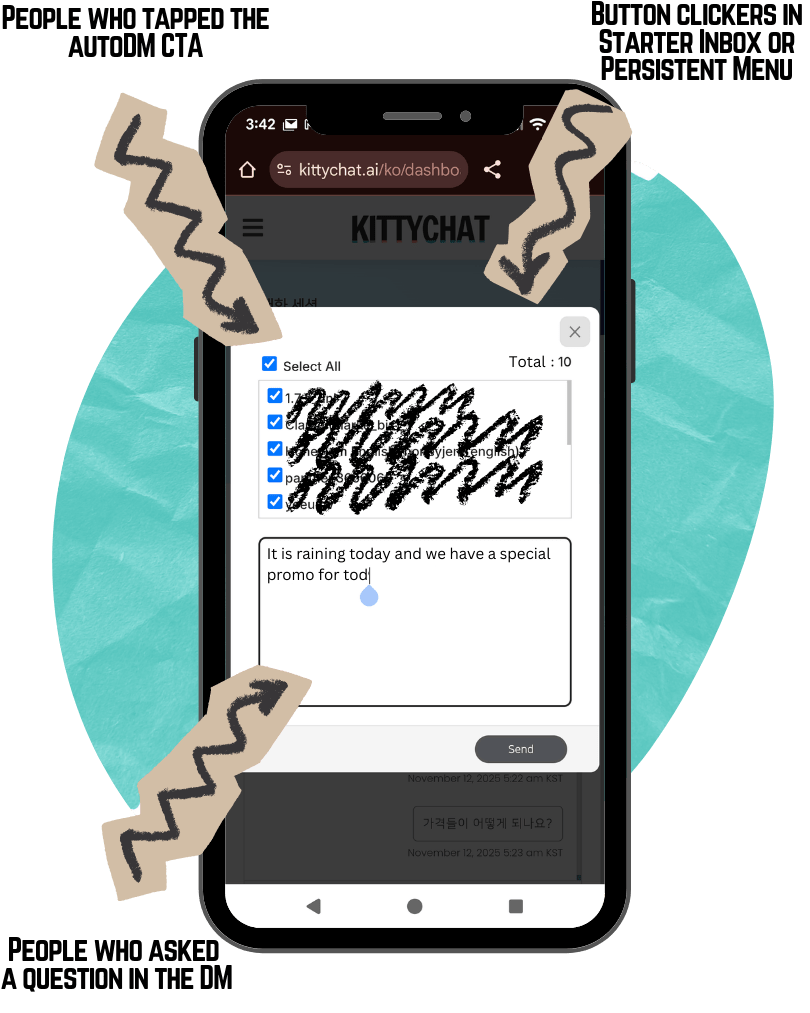
  • You can send a bulk DM for 24 hours to followers who clicked a button in a message, asked a question, or tapped the FAQ button in a DM.
  • It reads like a personally sent DM, not a mass email.
  • Messages land in the “Primary” folder, so recipients get a phone notification.
Learn more
Bulk DM sending example